
You can create slides containing the colorways you want using the Colorway merch template. To do so, click Generate, the following window appears:
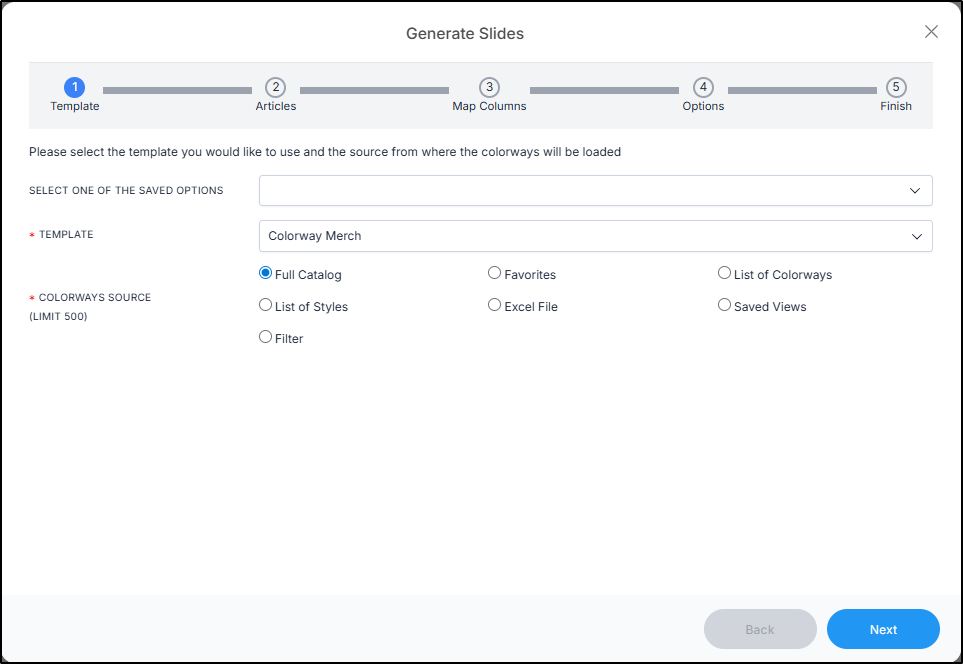
Select “Colorway merch” from the Template dropdown list as shown above. You can either include all catalog colorways, your favorite colorways, add a list of colorways or styles, import a list of colorways or styles as an Excel file, use your saved views, or use the filter as a source.
Full catalog
To generate slides for all the colorways in the catalog, follow these steps:
- Select the radio button next to (Full Catalog), then click Next, the following window appears:
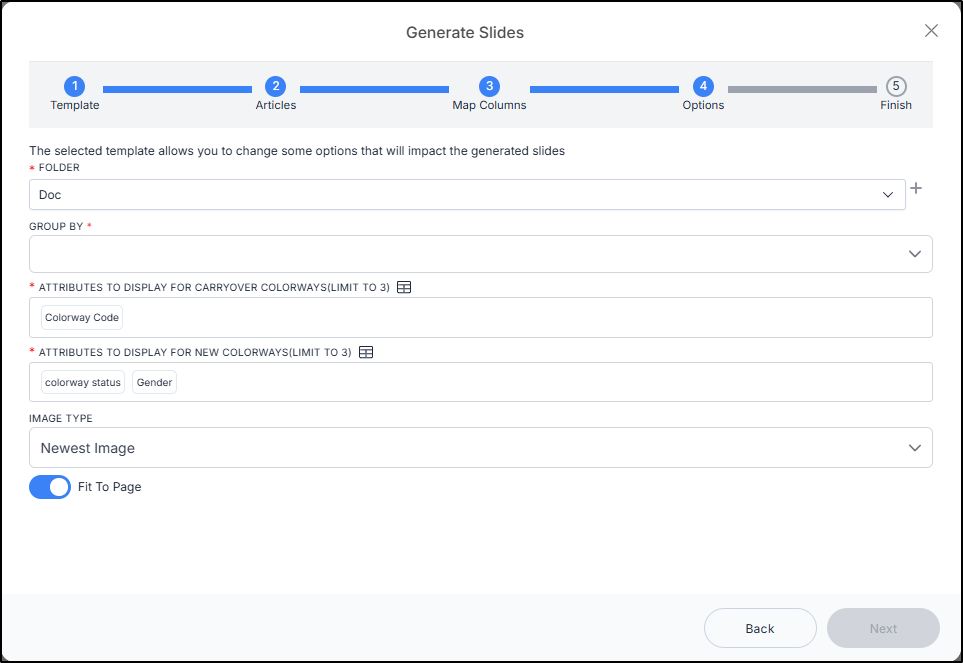
- Select the folder to which you want to add the slides, or click + to add a new folder,
- Select the attribute by which colorways are grouped,
- Select the attributes to display for carryover colorways. The following attribute chooser is displayed:
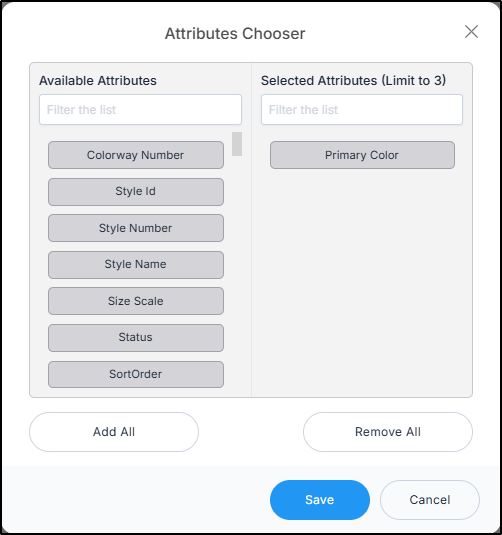
Click the attributes you want to move to the right-hand side, you can select up to 3 attributes, then click Save. You can also drag and drop the attributes to reorder them.
- Select the attributes to display for new colorways using the attribute chooser,
- Select the image type you want,
- Select if you want to resize the colorway image to fit the page,
- Click Next, the following window appears:
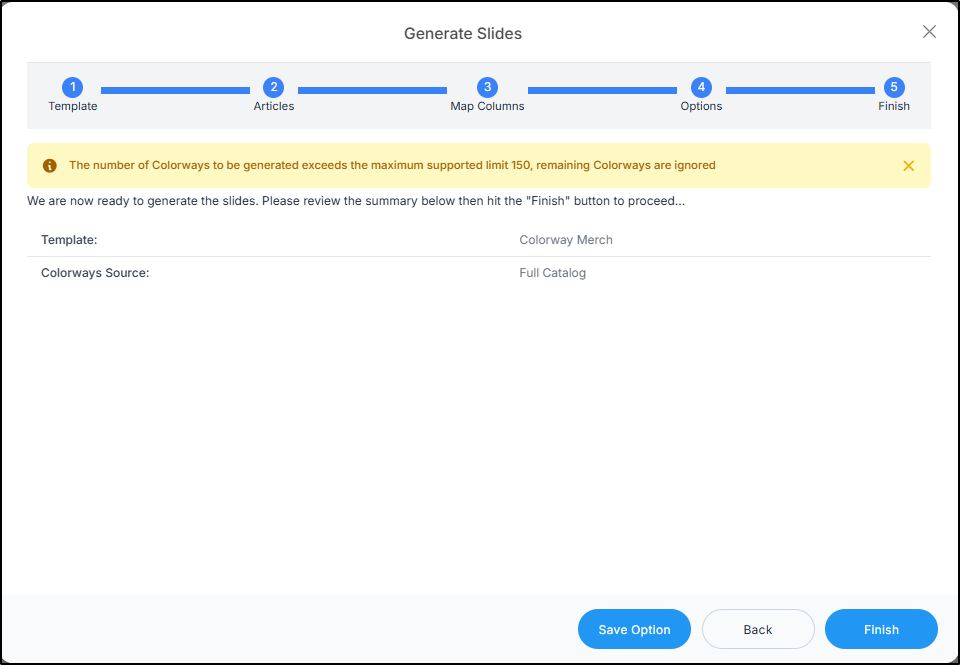
You can click Save option to save the values selected in the Options window.
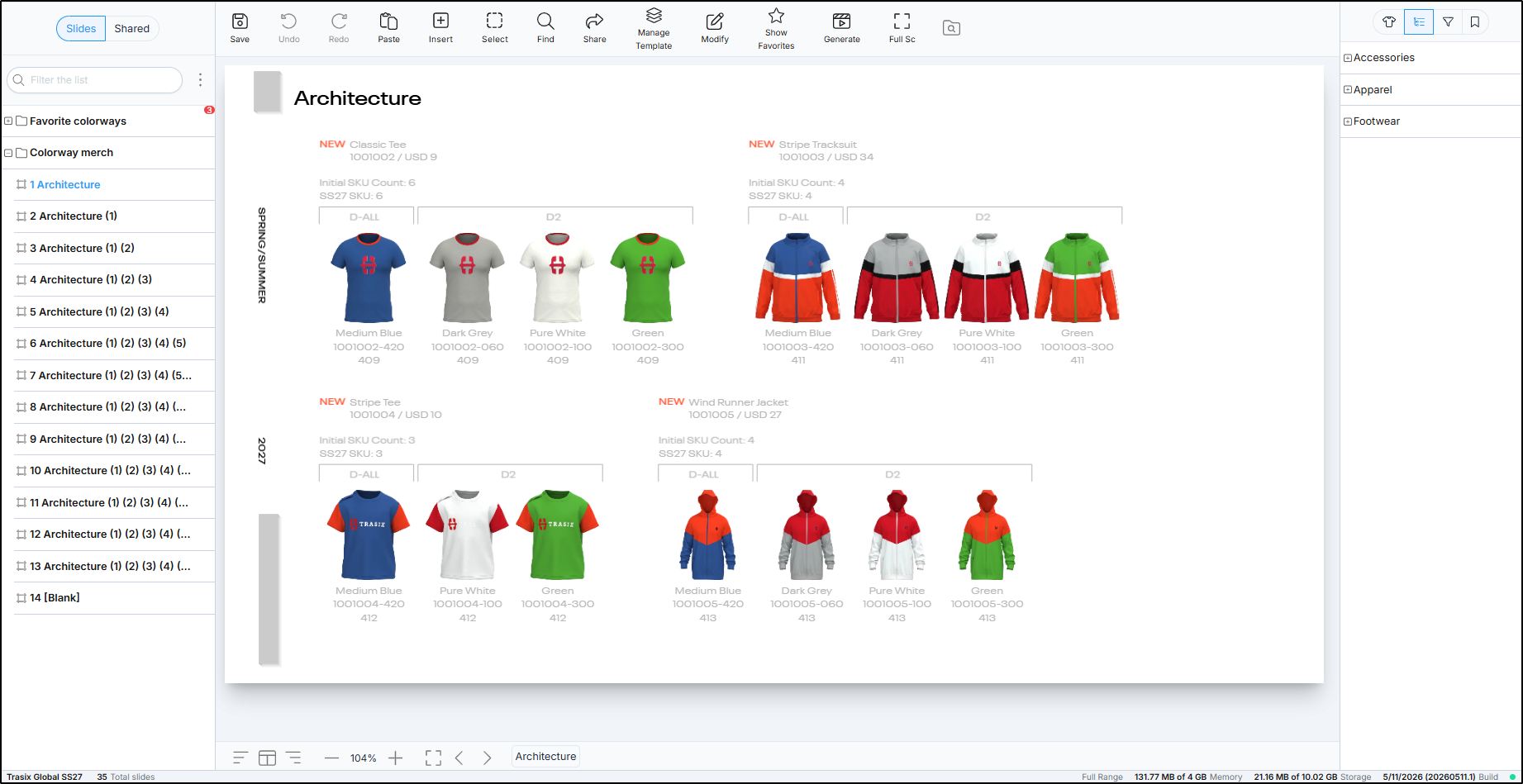
- Click Finish, slides are generated as shown in the below example:
Favorites
To generate slides for your favorite colorways, follow these steps:
- Select the radio button next to (Favorites), then click Next, the following window appears:
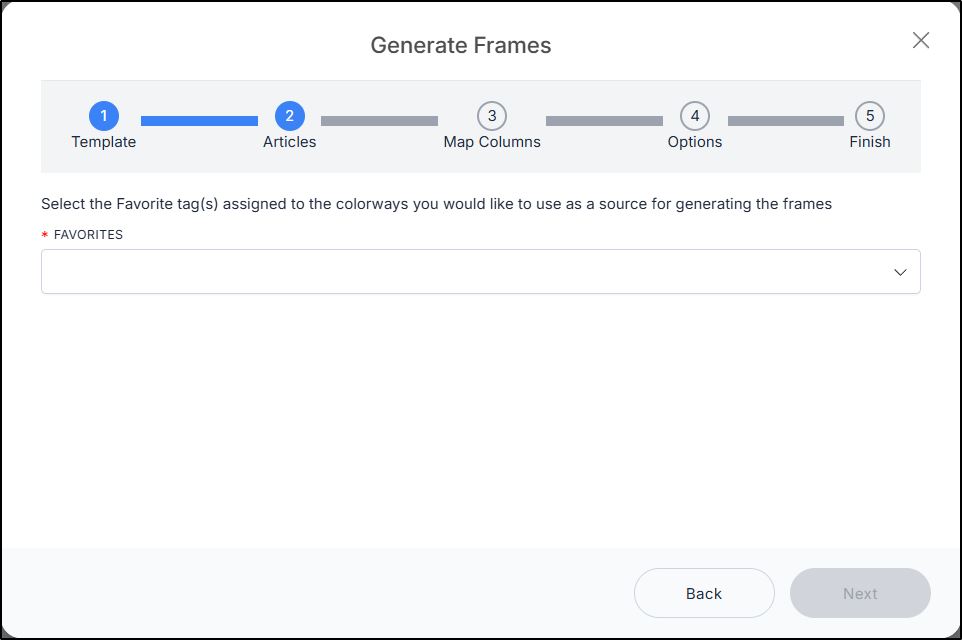
- Select the favorite tag you want, then repeat the steps mentioned above for generating frames for Full Catalog,
- Click Next then Finish, slides with your favorite colorways are generated.
List of colorways
To generate slides using a list of colorways, follow these steps:
- Select the radio button next to (List of colorways), then click Next, the following window appears:
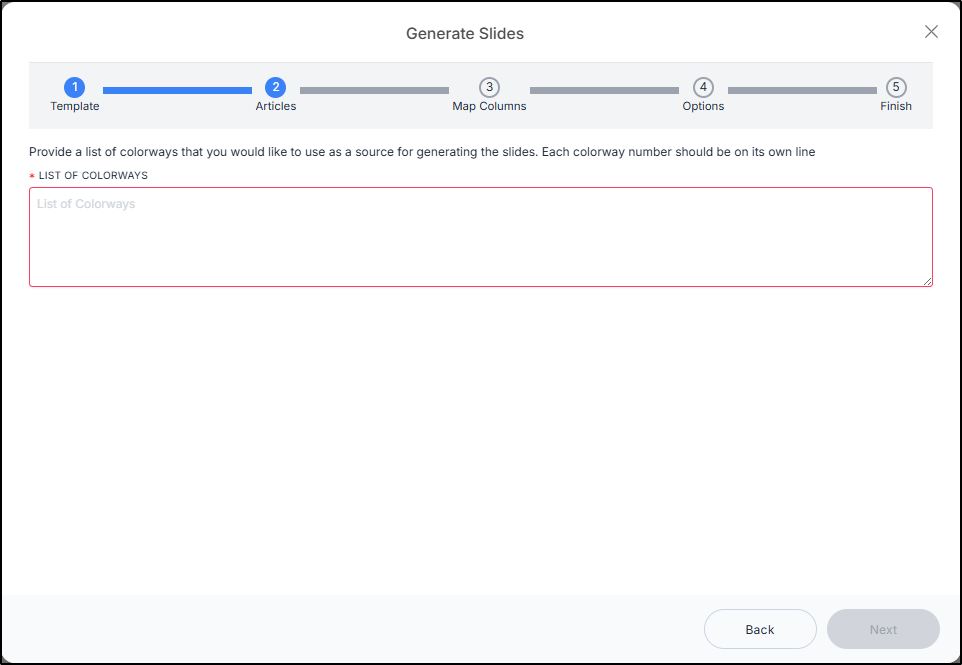
- Enter the colorway numbers, then follow the steps mentioned above for generating frames for Full Catalog,
- Click Next then Finish, frames with the specified colorways are created.
List of styles
To generate slides using a list of styles, follow these steps:
- Select the radio button next to (List of styles), then click Next, the following window appears:
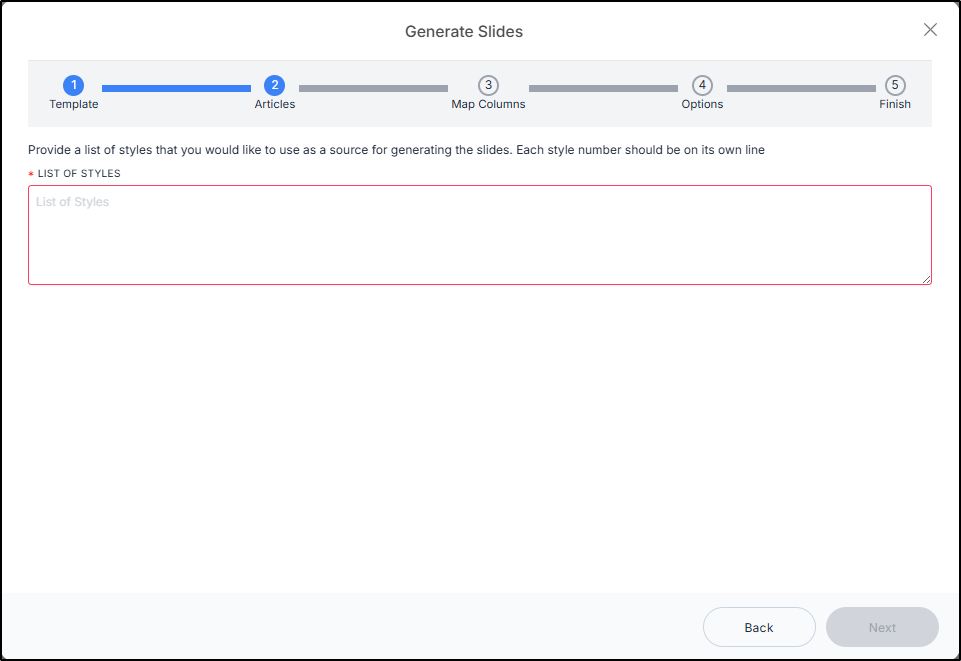
- Enter the style numbers, then follow the steps mentioned above for generating frames for Full Catalog,
- Click Next then follow the steps mentioned above.
Excel file
To generate slides using colorways from an Excel sheet, follow these steps:
- Select the radio button next to (Excel sheet), then click Next, the following window appears:
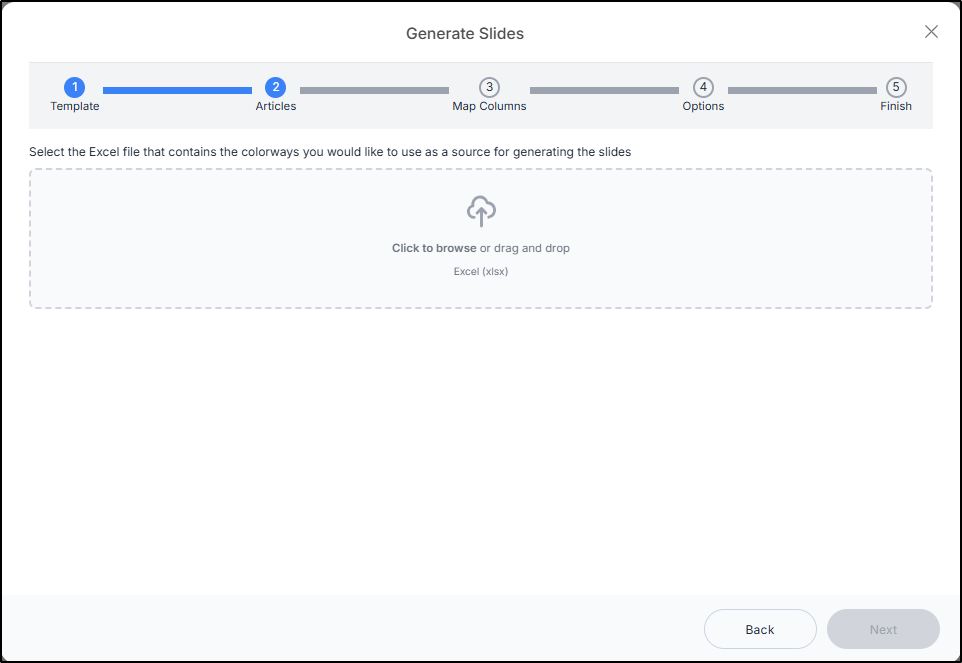
- Drag and drop the file or browse for it, then click Next, the following window appears:
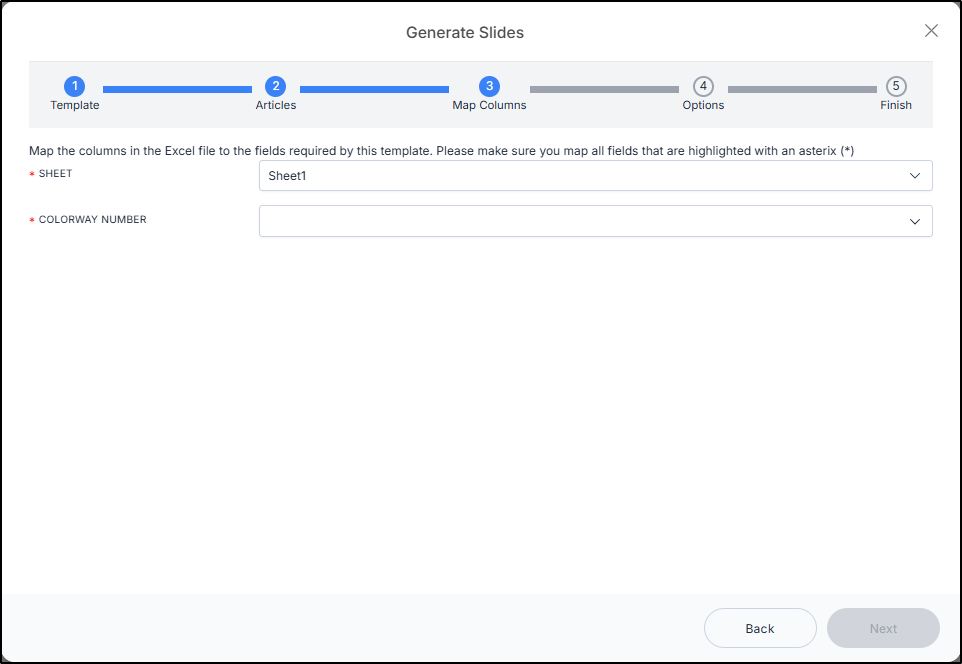
- Select the column that contains the colorway number,
- Click Next, then follow the steps mentioned above.
Saved views
To generate frames using colorways in your saved views, follow these steps:
- Select the radio button next to (Saved views) then click Next, the following window appears:
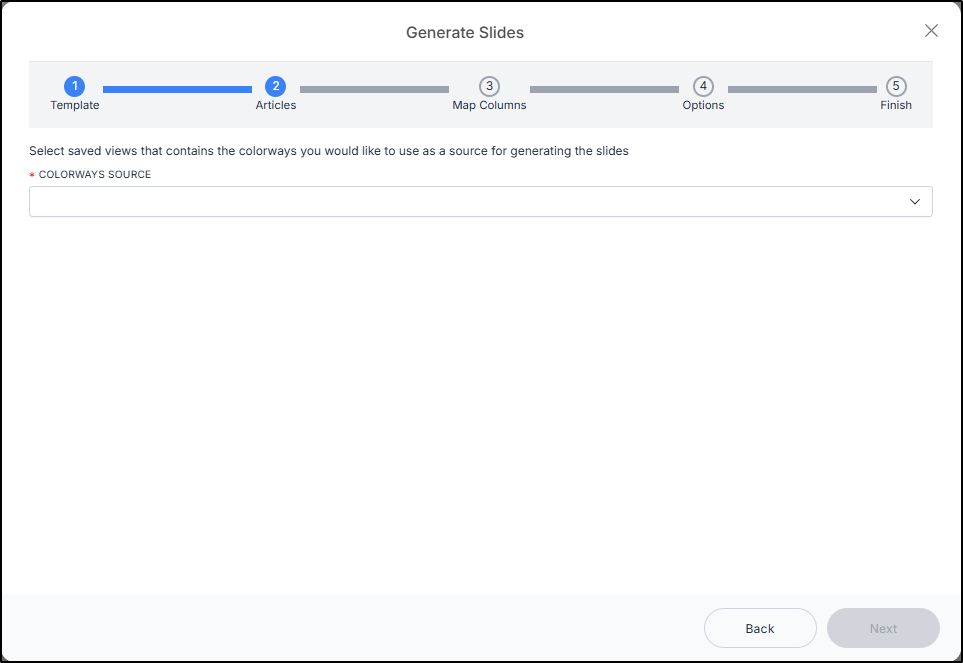
- Select the saved views you want,
- Click Next, then follow the steps mentioned above. Slides with the specified colorways are created.
Filter
To generate slides with filtered colorways, follow these steps:
- Select the radio button next to (Filter) then click Next, the following window appears:
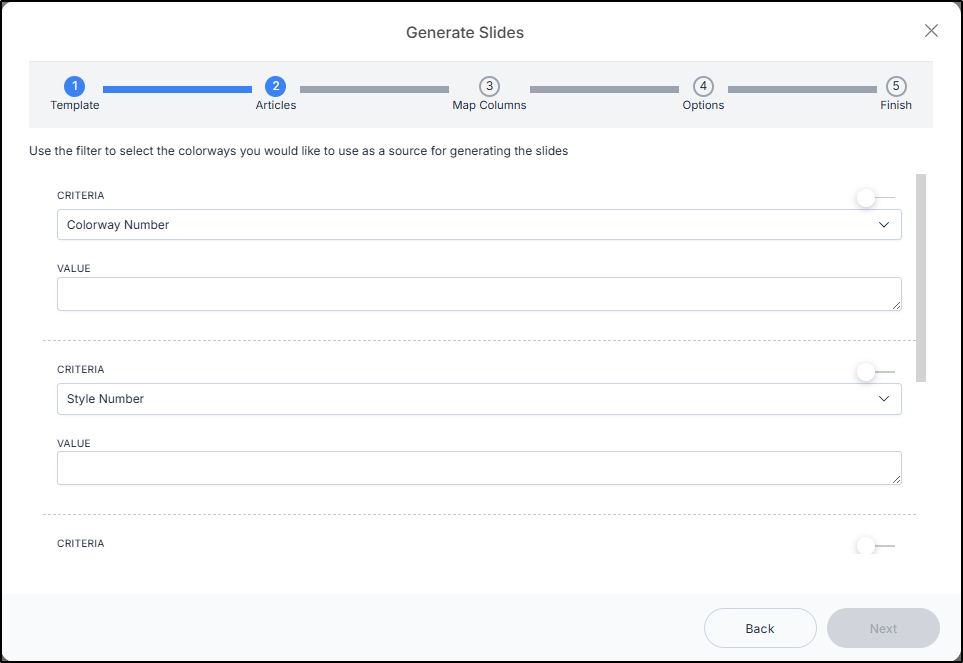
The filter criteria fields can be configured as you prefer. More information on using filters is available in Filter colorways
- Filter for the colorways you want then click Next, then follow the steps mentioned above.